QCG-Portal in 5 minutes
... we believe 5 minutes might be more than enough—you’ll be up and running in no time!
Logging
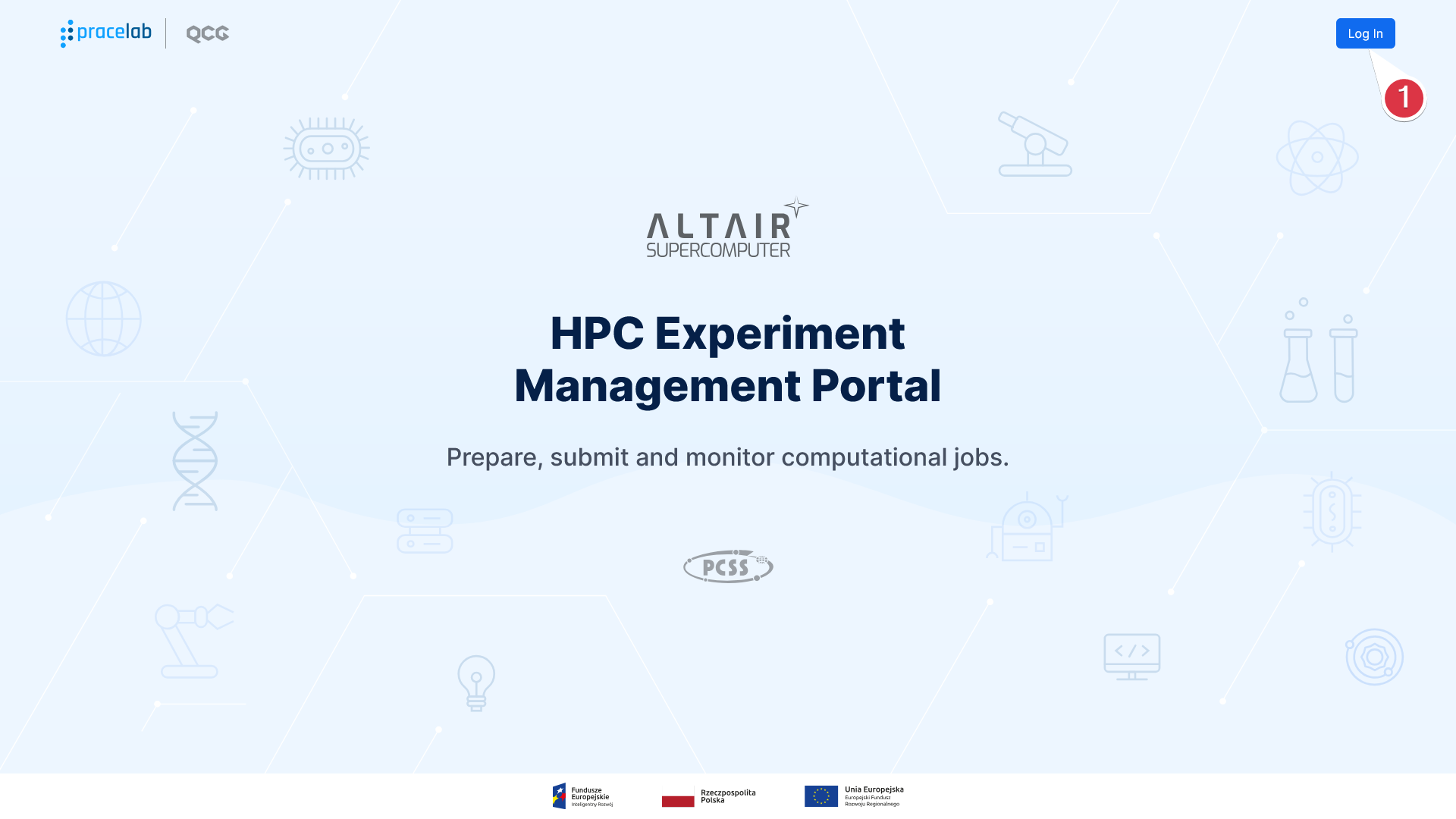
Go to the QCG-Portal webpage (for PCSS it is qcg.pcss.plcloud.pl). If you are not already logged in, a landing page will be displayed where you can log in to the portal
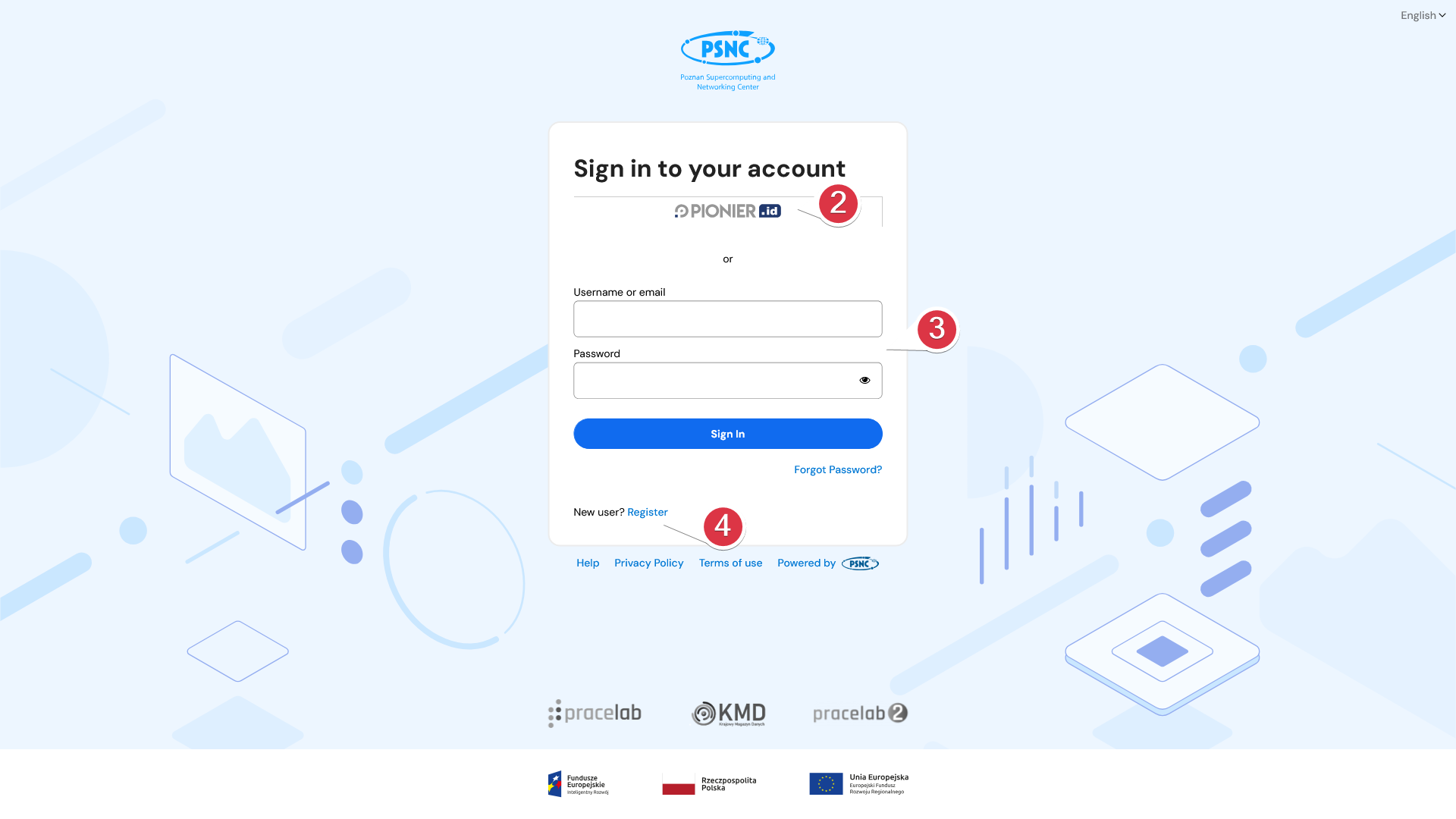
Then you will be redirected to the login page where, depending on a configuration, you can select from one or many loging options. In case of PCSS resources, you are offered with the federated login through the PIONIER.Id service
First task
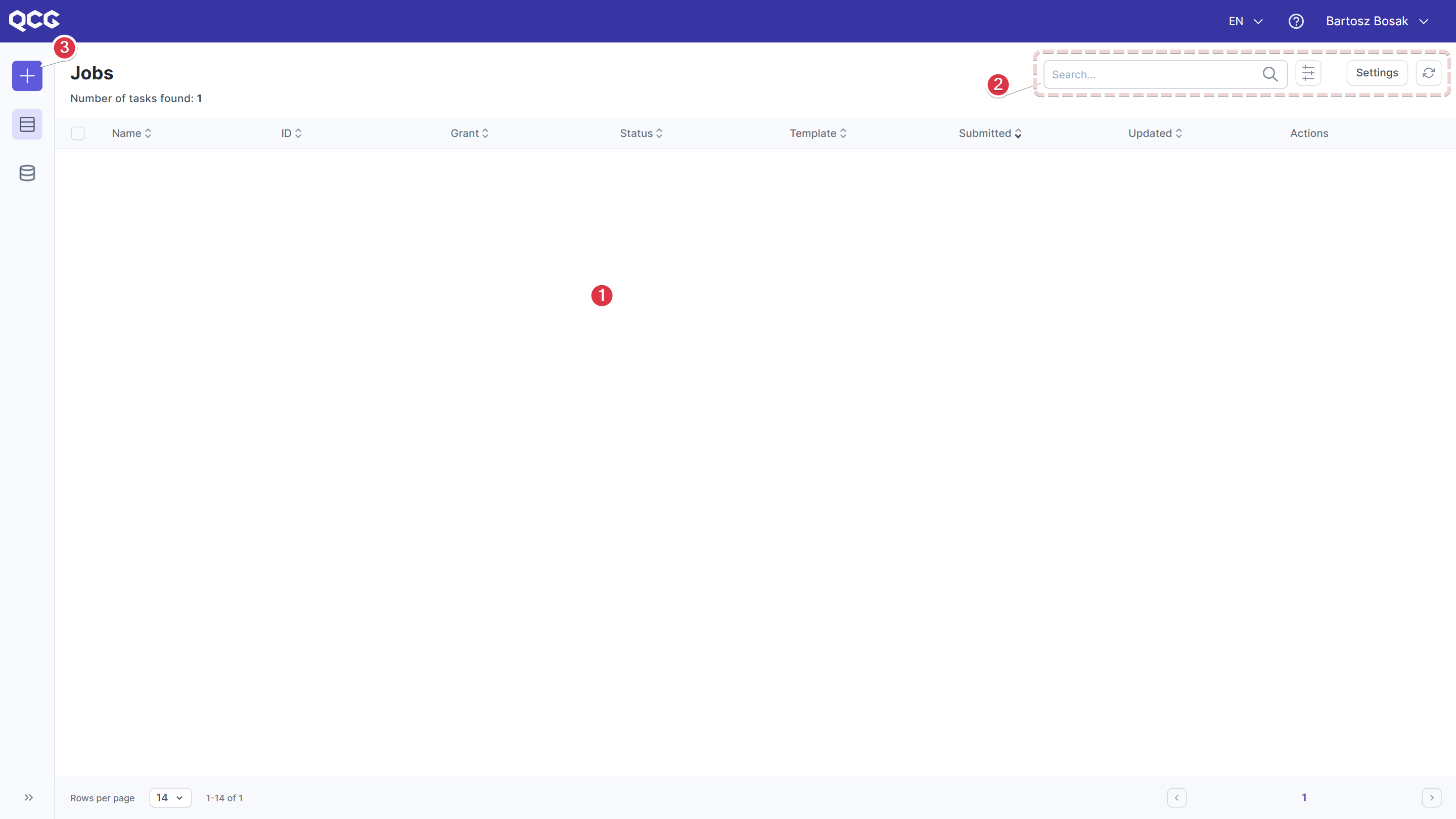
Once logged-in you will see the Main View of the portal with the list of tasks being its central element
Template selection
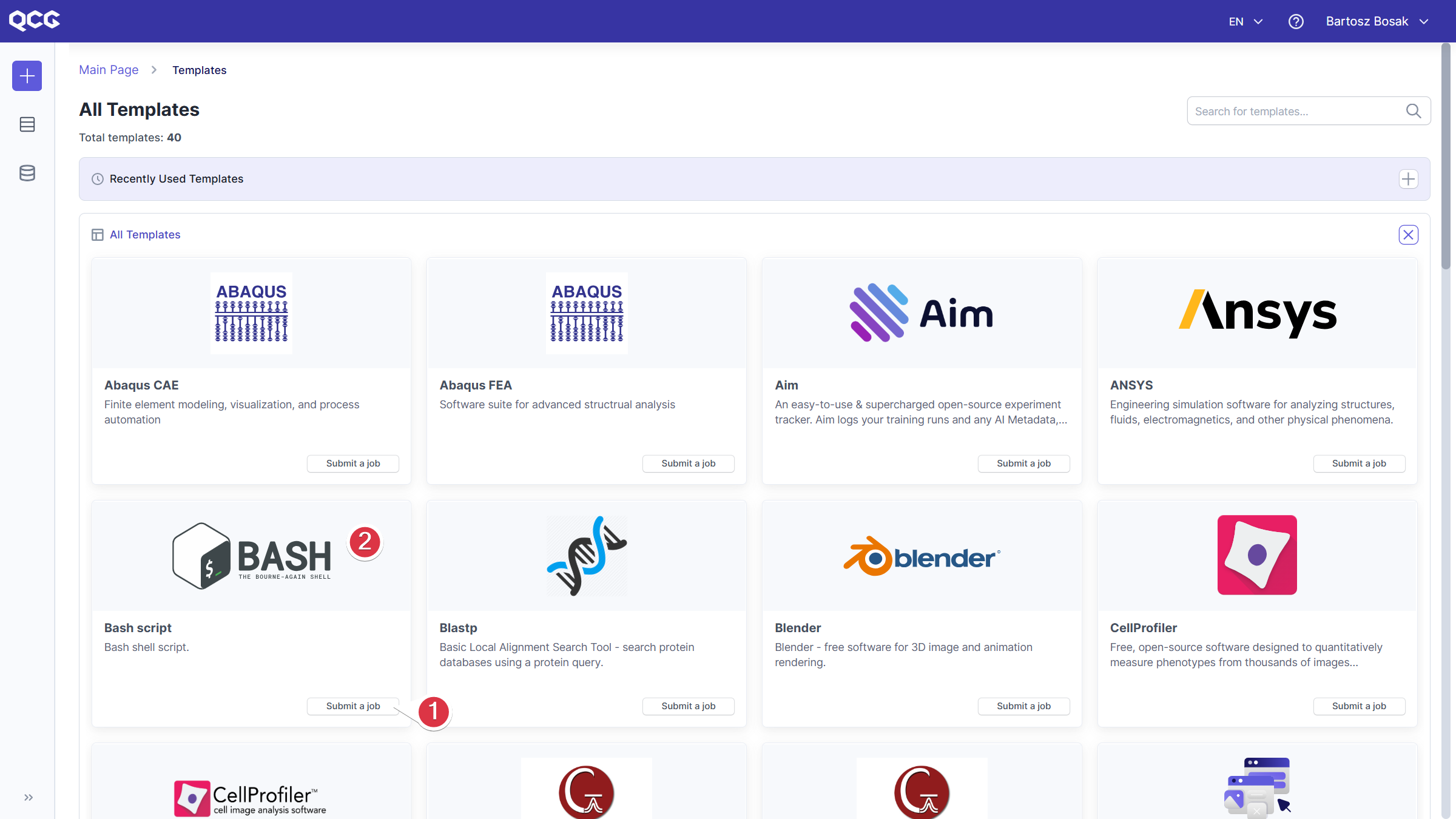
Now you are offered with a list of templates. In general you can search for the one you are interested in, but being minimalistic, let's assume we would like to run just a BASH script. By finding the appropriate template, and clicking on Submit a job
Preparing application input
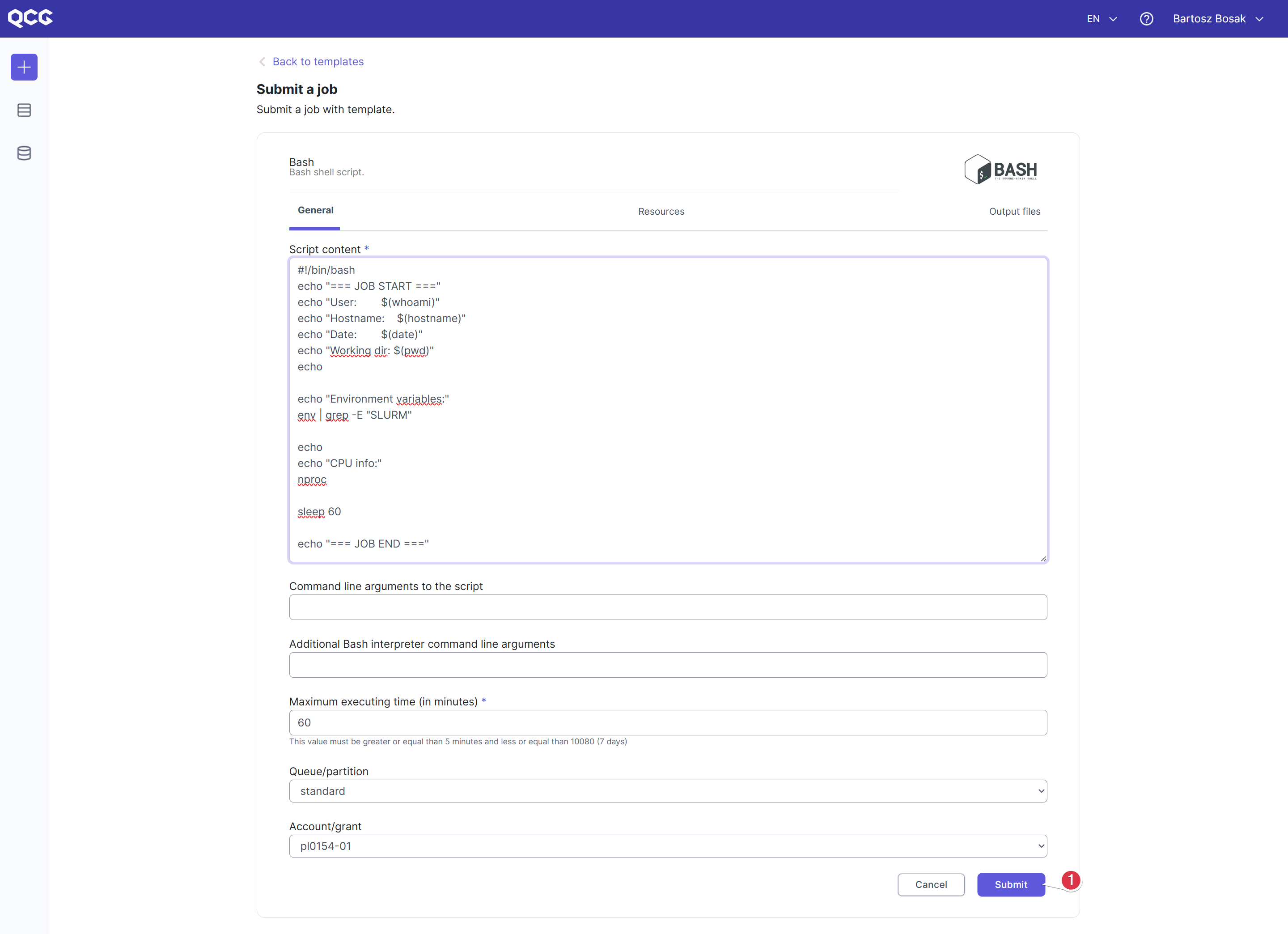
Once you requested for the job submission with a selected template, a template-specific form is displayed. In case of the BASH template, the form is relatively simple. It consists of three tabs dedicated to different aspects of the execution:
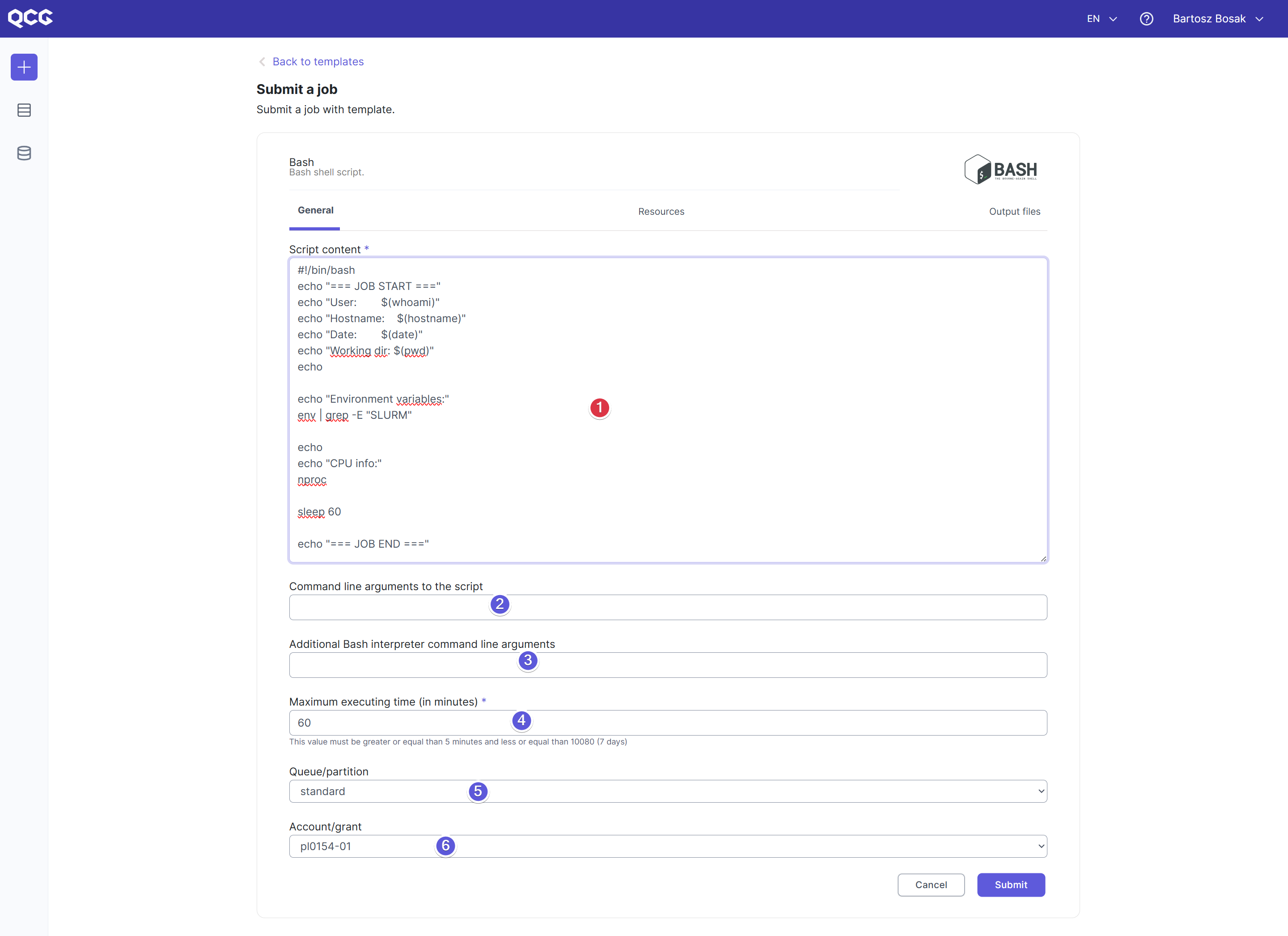
The General tab allows you to define main parameters for the job, including the most crucial Script content
which will be passed to the computing resource for the execution. Let's asume we want to run very simple script that will print basic information about the environment where it is executed. To do so, we can put the following program as the Script content:
#!/bin/bash
echo "=== JOB START ==="
echo "User:        $(whoami)"
echo "Hostname:    $(hostname)"
echo "Date:        $(date)"
echo "Working dir: $(pwd)"
echo

echo "Environment variables:"
env | grep -E "SLURM"

echo
echo "CPU info:"
nproc

sleep 60

echo "=== JOB END ==="
Info
As you can see, in addition to printing data, we use
sleep 60, which allows us to prolong the job execution for demonstration purposes.The other parameters, i.e.:
- command line arguments for the script
, - command line arguments for the bash interpreter
, - maximum execution time
, - queue/partition
, - account/grant
can be fulfiled depending on needs. In our example we will left them with default settings.
- command line arguments for the script
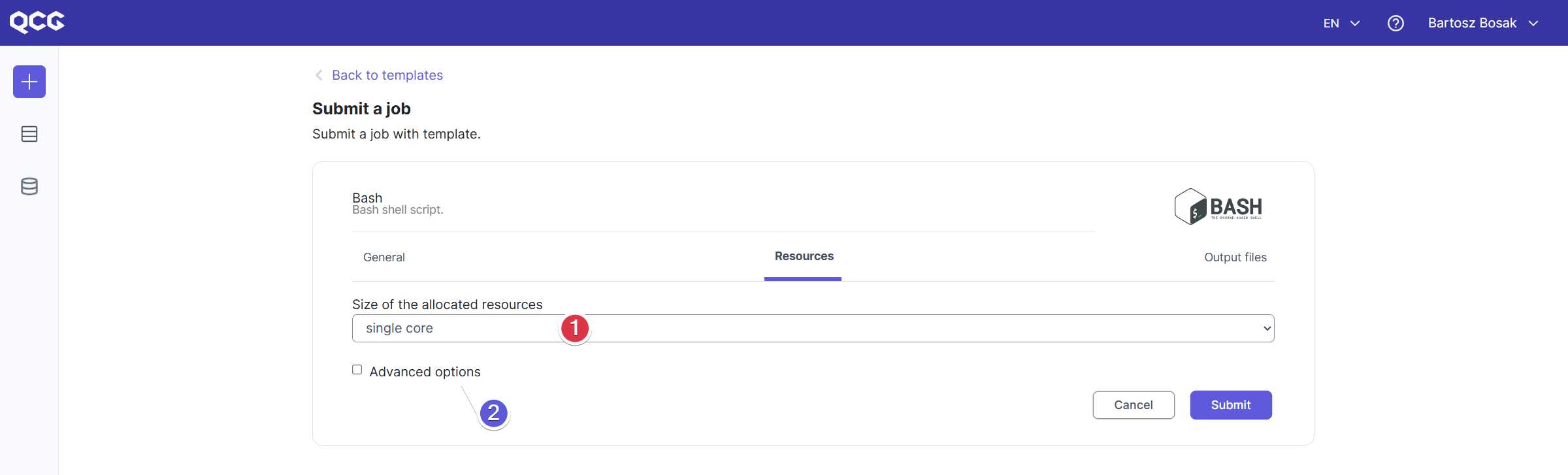
The Resources tab provides options for specifying resource requirements. Using the available form, you can define the size of the allocated resources for the execution
and, if needed, configure more advanced parameters in the Advanced section . Since our script is extremly simple, we will leave these section unchanged and run the script on a single core.
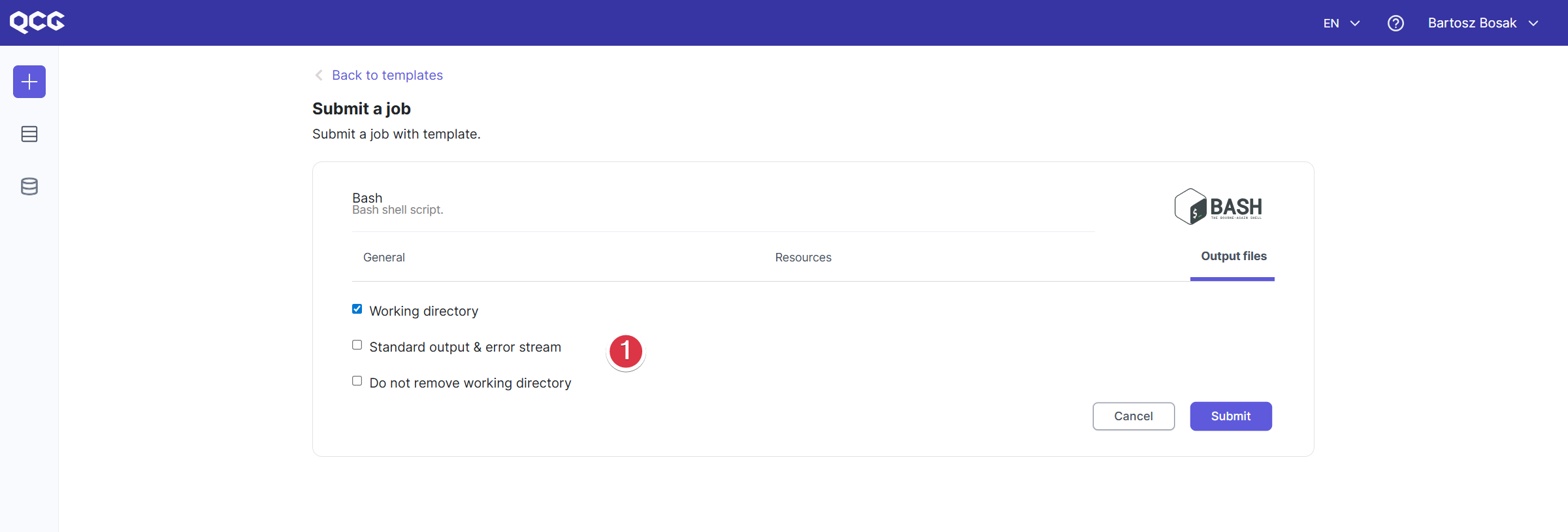
The last tab, Output files, allows you to specify which data is interested for you after computations and which files from the working directory should be kept. For the BASH template you can select from keeping the whole working directory or any of files containing data from stderr and stdout streams of a job.
We will stick to the default settings, so the whole working directory will be available after computations
.
Task submission
Having the input configuration ready, the task can be submitted for the execution as simply as by clicking Submit
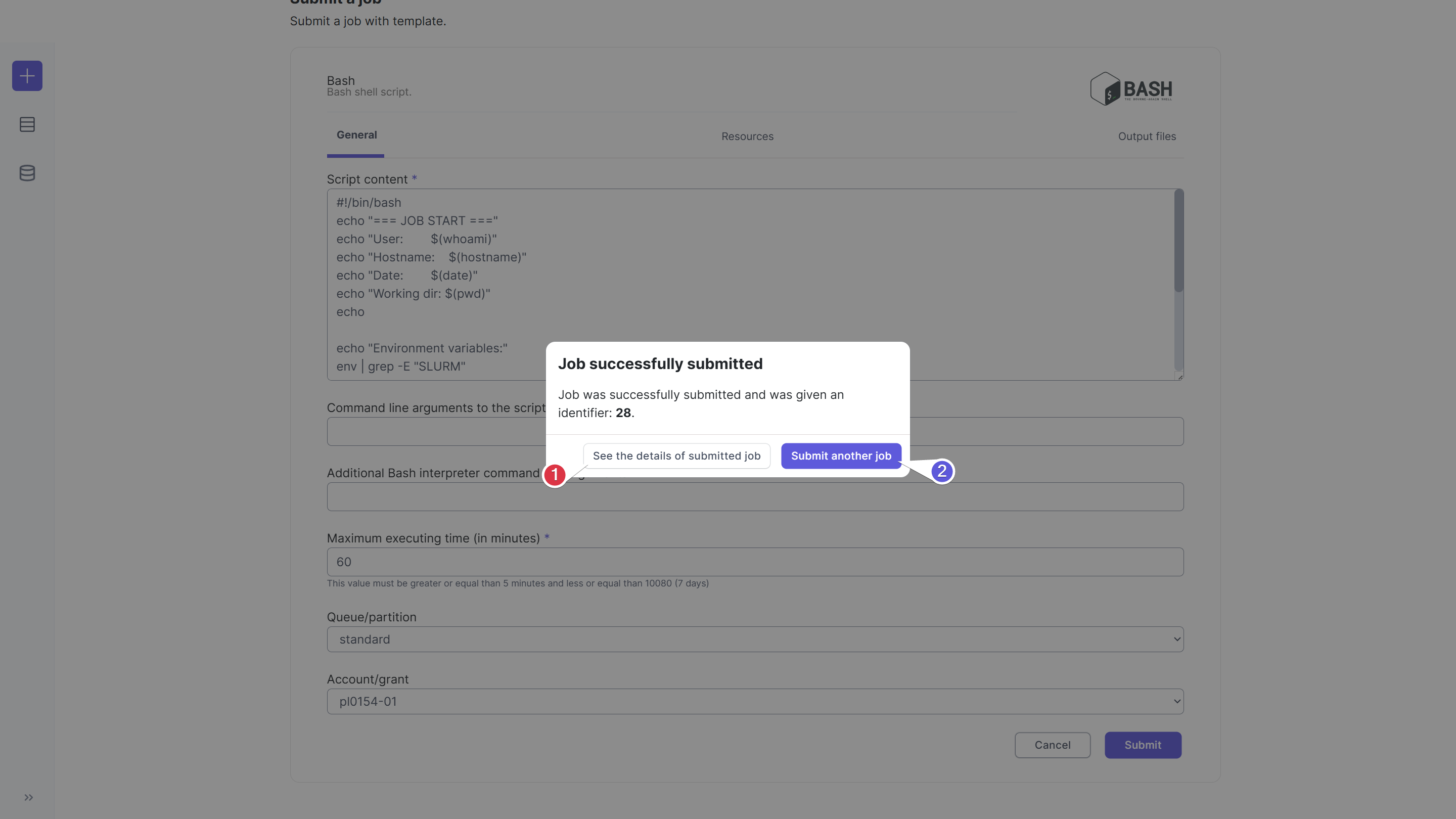
The submission is confirmed by the dialog, which allows you to go to the submitted task's details
Task execution
The portal provides built-in mechanisms for conveniently tracking the status and details of submitted tasks, as well as accessing intermediate results and final outputs. By selecting the first option in the submission confirmation dialog (as described in the previous step), you will be directed straight to the Task Details view for the task you just submitted.
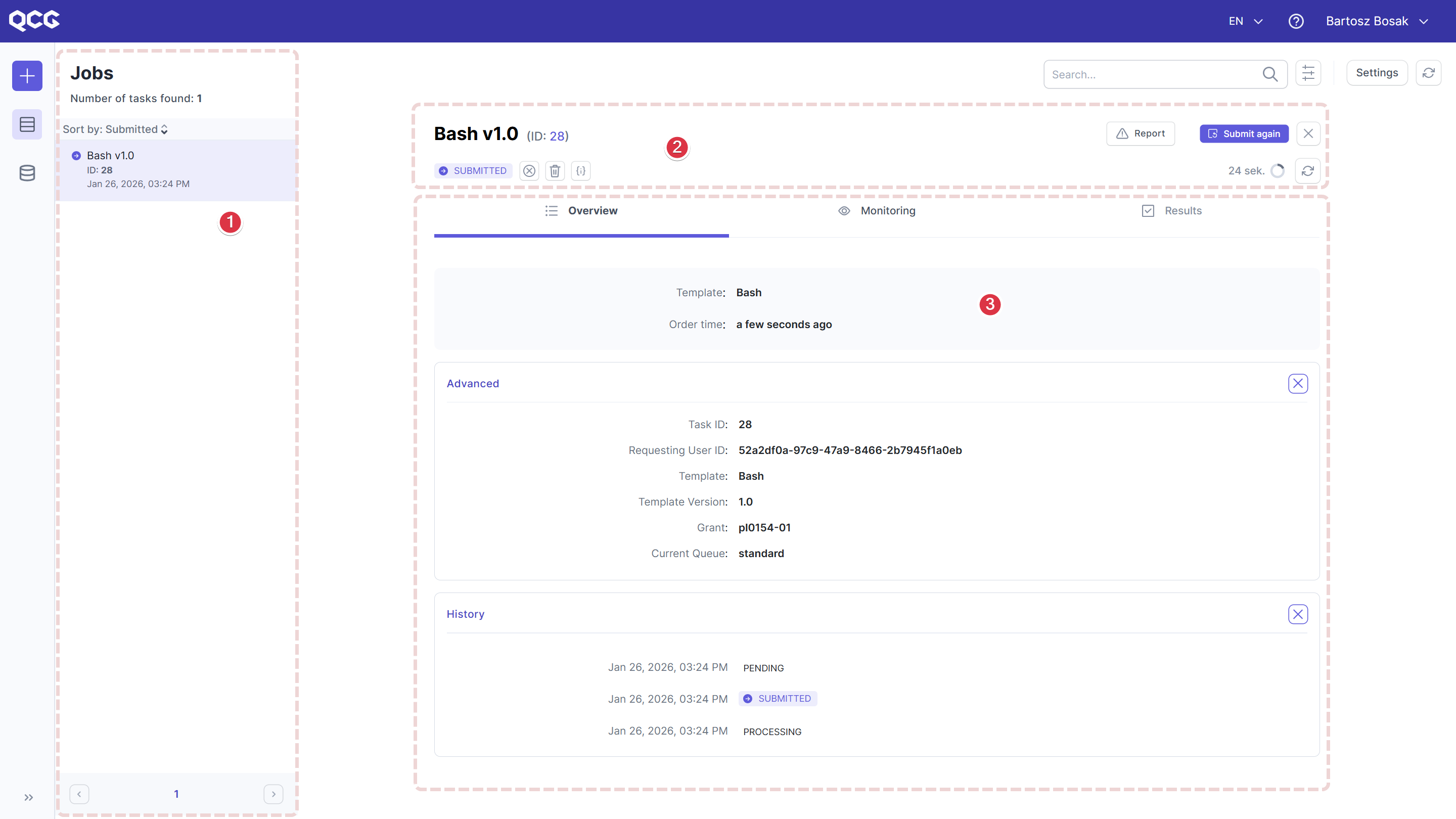
Task Details view
This view includes Task List
Task Overview Header
- Provides key information about the selected task together with quick-action buttons. Tabbed Details Panel
- Displays various types of detailed information related to the task.
Tabbed Details Panel
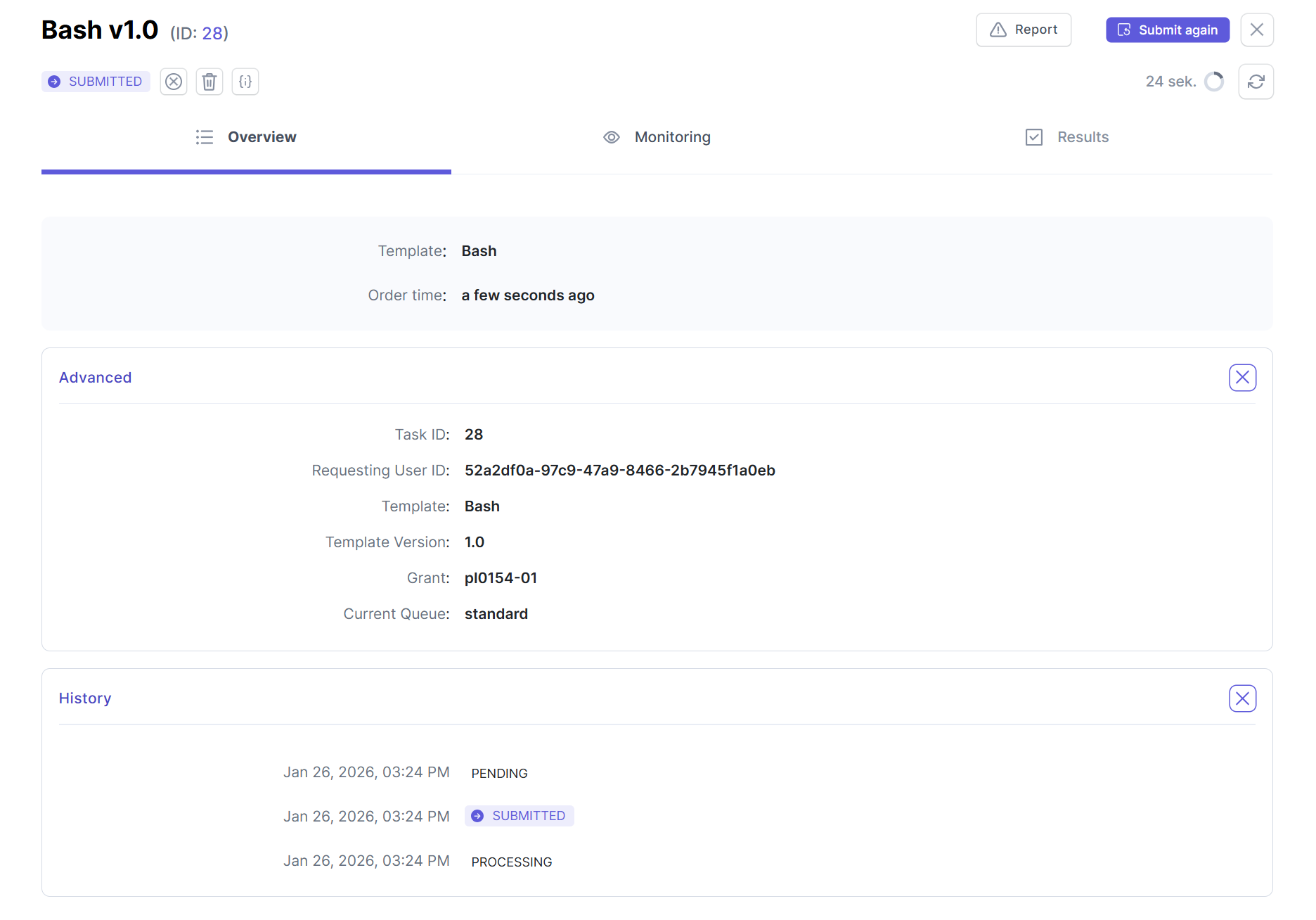
The presentation of task specific information in Tabbed Details Panel is split into the following three tabs:
- Overview - Summarizes the task’s metadata, including configuration details, timing, identifiers, execution context, and status history.
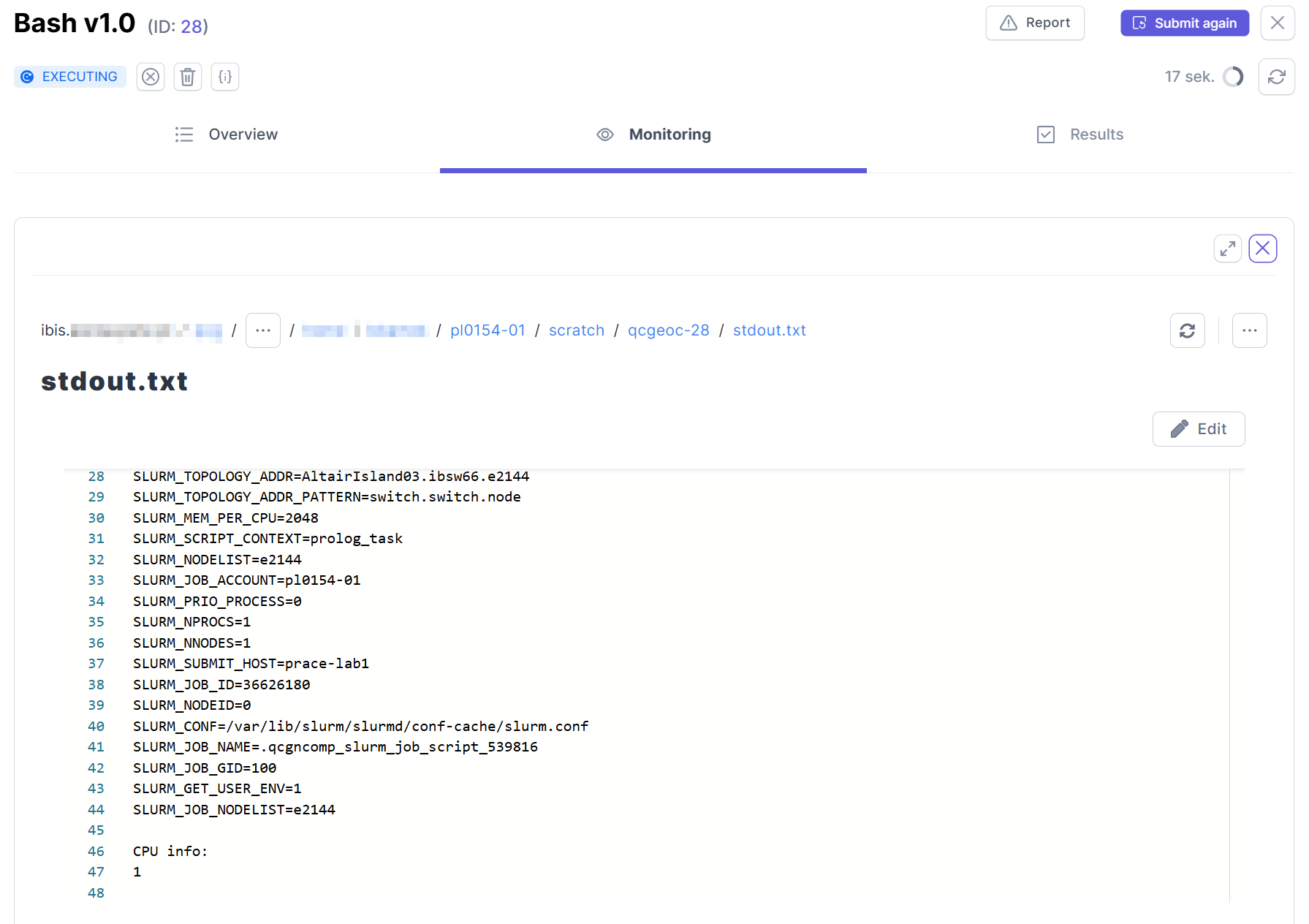
- Monitoring - Enables tracking of the application’s execution progress. For all templates, QCG-Portal provides a preview of the working directory in the form of a file explorer. It is possible to open a file to see its current content (as in our example
stdout.txt). Some templates additionally offer extended, application-specific monitoring panels.
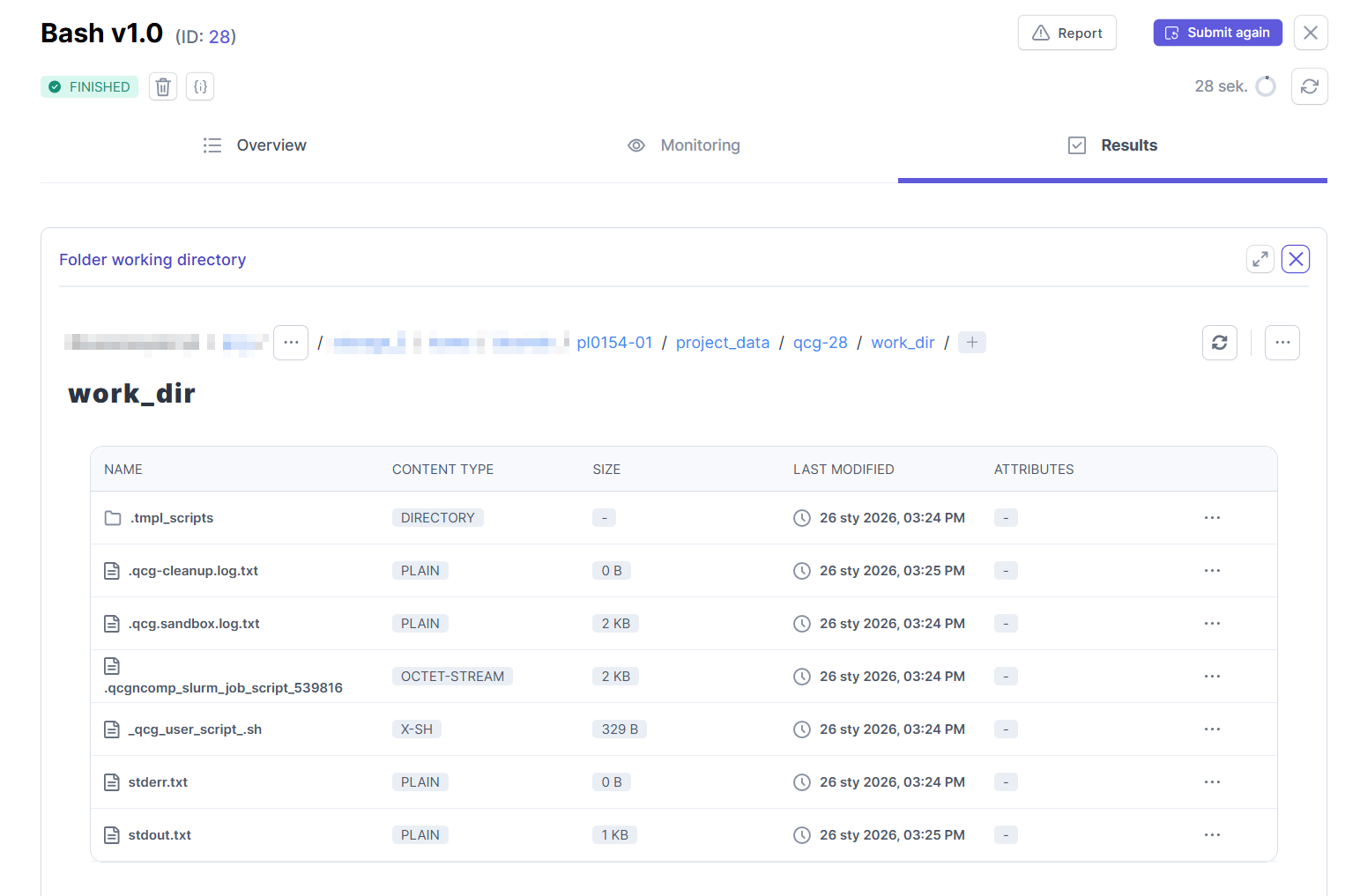
- Results - Presents the final outputs of the task. As with the Monitoring tab, users are provided with a file explorer to browse output data, while more advanced templates may offer alternative or enhanced result-presentation methods.
Main View
The Main View of the portal, presenting a list of tasks in a compact tabular form, can be accessed in the three different ways:
- by clicking the "QCG" logo in top-left corner,
- by clicking the
 icon in the left sidebar of the portal.
 - by clicking the
 icon in the Task Overview Header in Task Details.
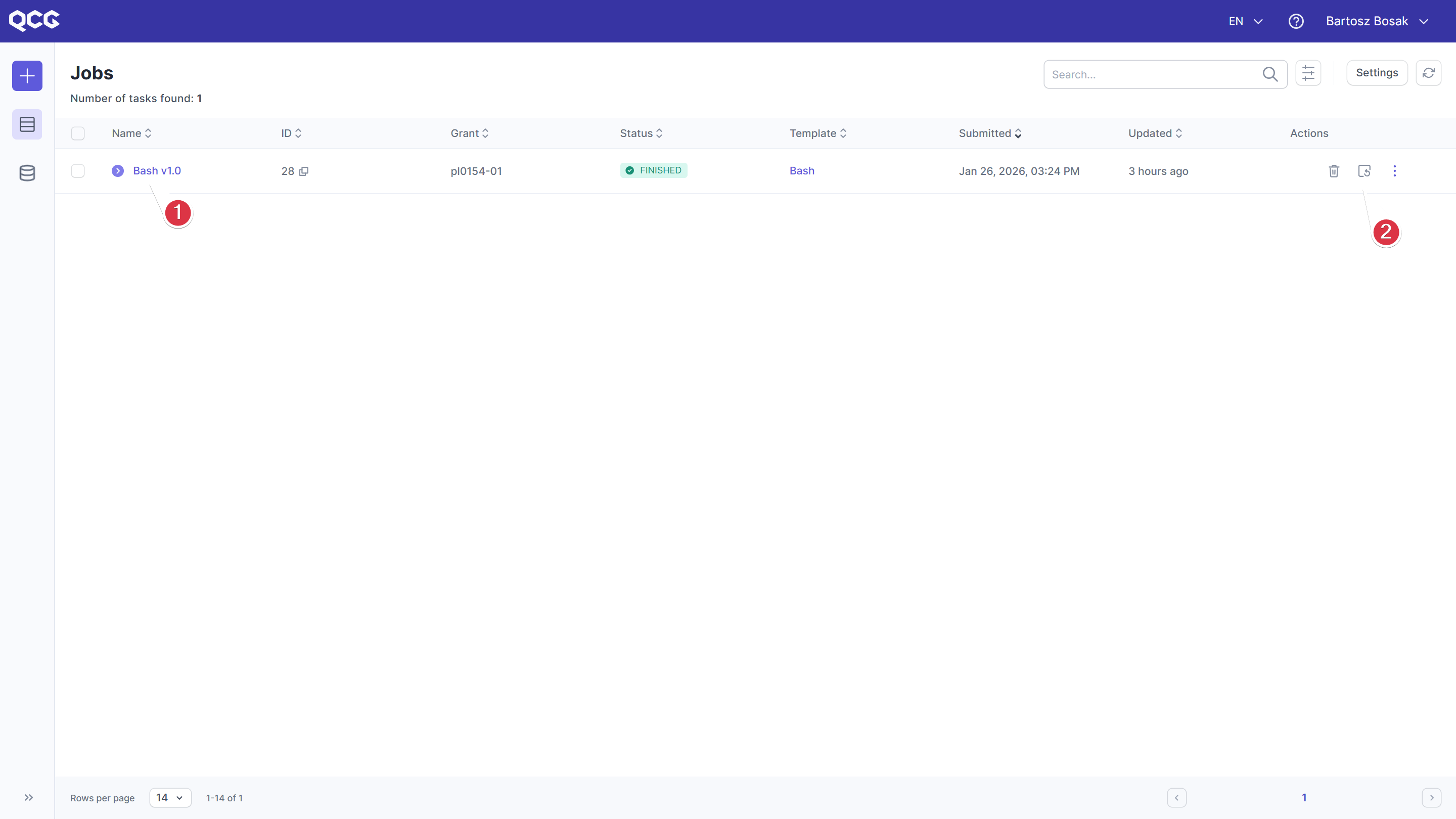
Now, when the first task has been submitted, the table contains a row displaying the key information for this task. Additional rows will appear as more tasks are submitted.
To open the Task Details view, simply click the task name